
How to download an e-mail from Gmail
Most folks nowadays use Gmail. Known for its intuitive interface, it’s probably one of the most popular e-mail services around. In just a few easy steps, you can download an email or an attachment. If you plan on deleting your account, you can download all of your Gmail data at once. Let’s get right into it.
Download an e-mail from Gmail
- Time to complete: 5 minutes
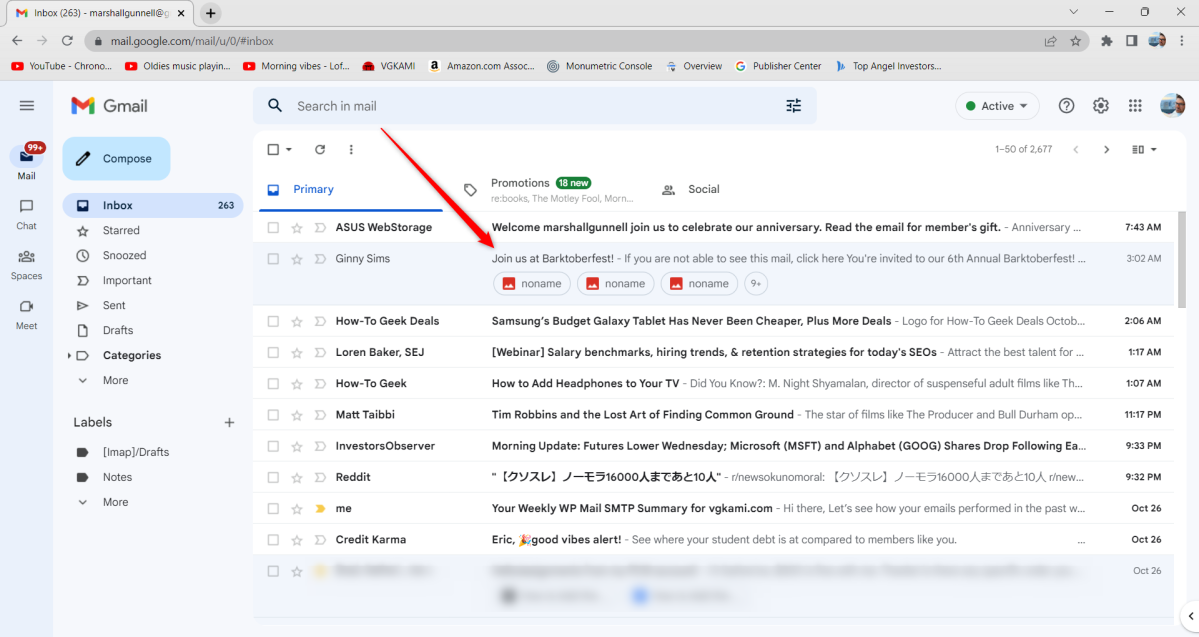
To download an e-mail from your Gmail account, open Gmail on your Mac or Windows PC and select the e-mail you’d like to download.
IDG / Marshall Gunnell
Next, click the “More” icon (three dots in a vertical line) in the top-right corner of the e-mail.

IDG / Marshall Gunnell
Finally, towards the bottom of the drop-down menu, click “Download Message.”

IDG / Marshall Gunnell
The e-mail will be downloaded as an EML file and can usually be found in the Downloads folder. To open the file, you’ll need a desktop mail client.
Download an e-mail attachment from Gmail
To download an e-mail attachment, open Gmail on your Mac or Windows PC and select the e-mail that contains the attachment that you’d like to download.

IDG / Marshall Gunnell
The attachment can be found at the bottom of the e-mail. Hover your cursor over the attachment and then click the Download button.

IDG / Marshall Gunnell
The attachment will begin downloading and can usually be found in the Downloads folder.
Download all of your Gmail data
You can also download all of your Gmail data at once, including unread, read, sent, draft, and archived messages. If your e-mail is part of a school or organization, you may not be able to download certain things, if anything at all. If you have Super Administrator privileges of your own domain, you can download anything.
To get started, open your browser of choice and head over to Google’s Download Your Data page. All of Google’s services are selected by default. If you only want to download your Gmail data, deselect all of the items and then only check the box next to “Mail.”

IDG / Marshall Gunnell
Next, scroll to the bottom of the page and click “Next Step.”

IDG / Marshall Gunnell
You’ll need to choose the file type and size, frequency, and destination. Once you’ve adjust the settings to your liking, click “Create Export.”

IDG / Marshall Gunnell
Google will then begin creating a copy of all of your files from Gmail. This process can take quite some time, ranging from a few hours to even several days. Once the export is finished, you’ll receive an e-mail with the download link.
Related: How to unzip files in Windows 10
https://www.pcworld.com/index.rssPCWorldPCWorld helps you navigate the PC ecosystem to find the products you want and the advice you need to get the job done.Technology124
Powered by WPeMatico