
How to enable dark mode in Microsoft Office
If you suffer from eye strain or tension headaches, you may want to consider enabling dark mode in Microsoft Office. Not only is it easier on the eyes, but it also helps reduce any issues with glare. Not sure how to go about it? Don’t sweat it. We’ve got you covered. Whether you tango with Windows or Mac, we’ll guide you every step of the way.
Note: Dark mode is available for Office 365 subscribers and in certain Office 2019 editions.
How to enable dark mode in Office for Windows
- Time to complete: 5 minutes
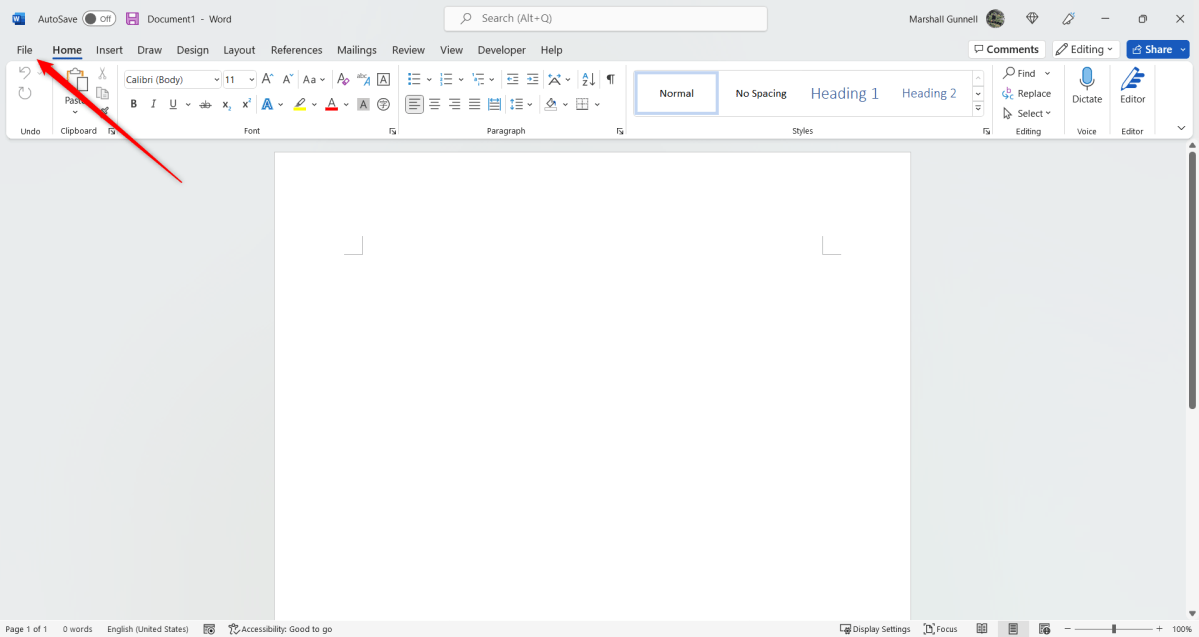
Open any Office app and click the File tab.
IDG / Marshall Gunnell
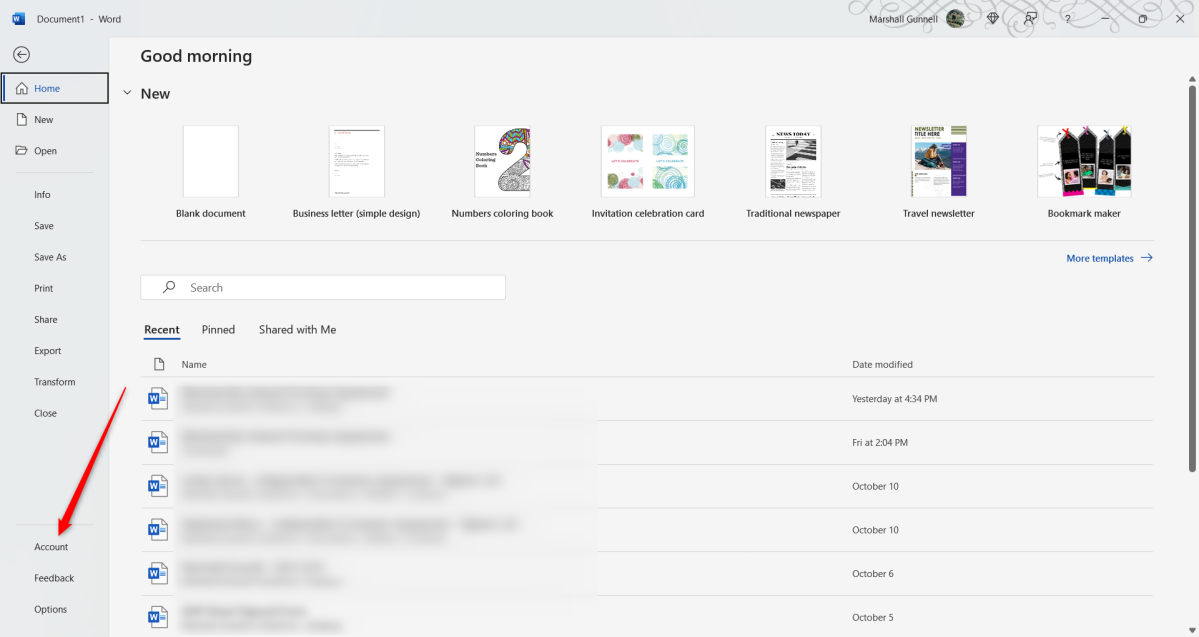
Next, click Account on the bottom of the left-hand pane.
IDG / Marshall Gunnell
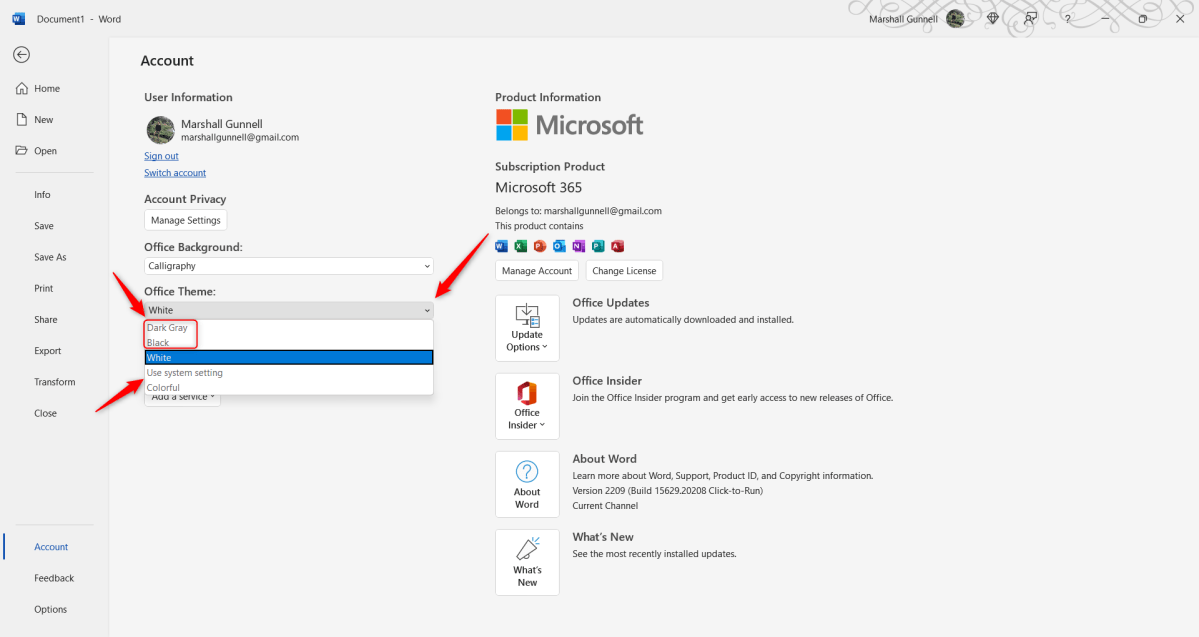
Click the box under Office Theme to display a menu with several theme options. Black is the true dark mode. If that’s too dark, though, you can use Dark Gray. Or, if you want to have Office update itself to the current system setting, select Use System Setting.
IDG / Marshall Gunnell
.
All of your Office apps will now be in dark mode (or the selected theme).
How to enable dark mode in Office for Mac
Office for Mac doesn’t have a built-in theme feature. However, you can still get dark mode in Office by simply switching your system’s theme settings.
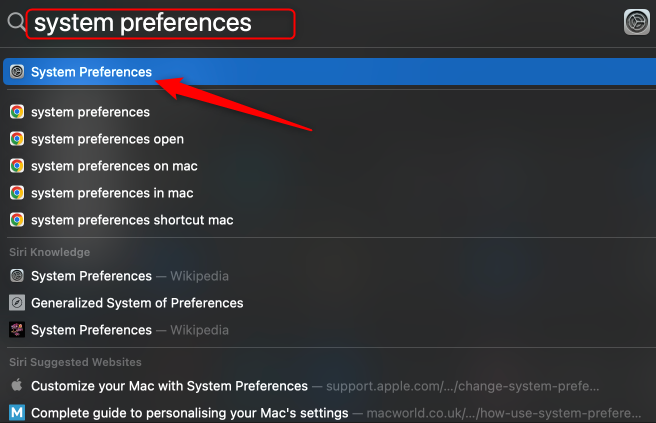
First, launch Spotlight Search by pressing Cmd + Space. Type System Preferences into the search box and click the result.
IDG / Marshall Gunnell
Click General in the top-left corner of the System Preferences window.
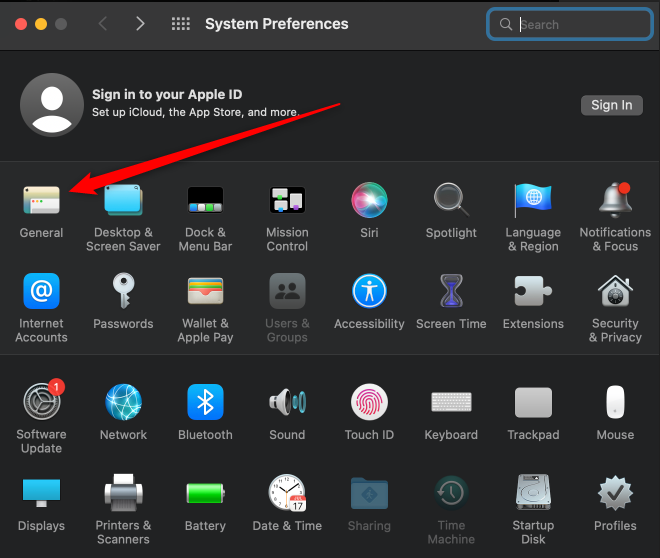
IDG / Marshall Gunnell
Next, select Dark next to Appearance at the top of the window.
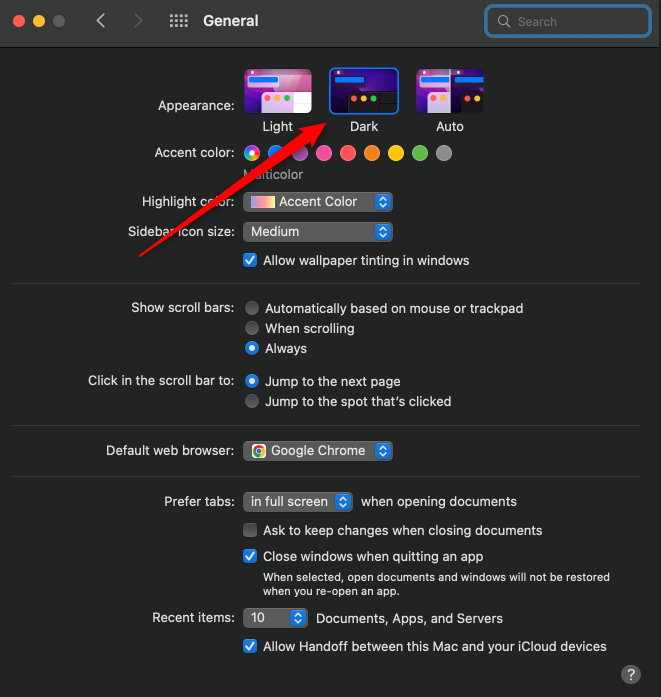
IDG / Marshall Gunnell
Your system theme is now set to dark mode, so the next time you open an Office application, it will adopt this theme.
Related: Windows 11’s dark mode has its own dark sounds
https://www.pcworld.com/index.rssPCWorldPCWorld helps you navigate the PC ecosystem to find the products you want and the advice you need to get the job done.Technology124
Powered by WPeMatico