
How to hide pics in Apple Photos so no one can ever see them
Apple Photos is a fantastic way to snap, save, store, and share your photos with you family and friends, even your Apple TV’s screensaver, but there are some photos that are for your eyes only. (This hilariously tragic recent Reddit post is just one such extreme example.) Fortunately, there’s an easy way to hide them so they won’t turn up unexpectedly.
You can hide photos using your iPhone, iPad, or Mac, and the method is basically the same on each.
iPhone/iPad
- Open the Photos app.
- Tap the photo you want to hide.
- Tap the Share button.
- Tap Hide.
- Confirm that you want to hide the photo.

IDG
Mac
- Open the Photos app.
- Select the photo or photos you want to hide.
- Right click or control-click and select Hide.
- You can also use the menu bar and select Image > Hide photo.
- Confirm that you want to hide the photo.
Apple will then move the photos into a hidden album called Hidden. If you use iCloud photos—and if you found this how-to, we’re guessing you do—the changes will appear across all of your devices. If you hide a photo on your Mac, it’ll also hide on your iPhone and vice versa.
How to view the Hidden album
If you want to see what’s in your Hidden album, here’s what you need to do:
iPhone/iPad
- Go to Albums in the Photos app.
- Scroll down to Hidden under Utilities.
- Tap to open.
- To hide the entire album, go to the Settings app, then Photos, scroll down to Hidden Album, and turn the toggle off.
Mac
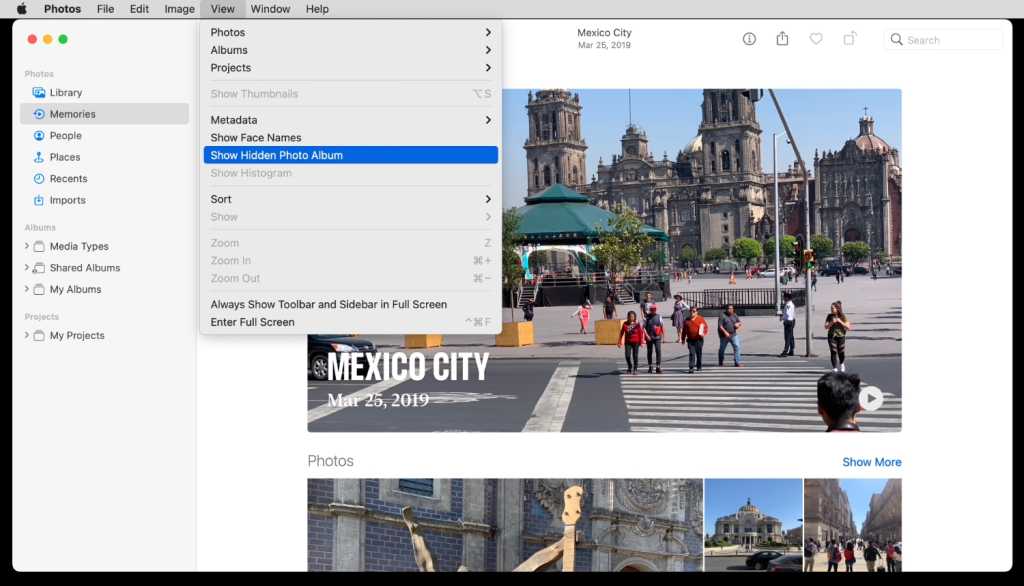
- Go to the View menu in the menu bar and select “Show Hidden Photo Album.”
- Click the Hidden album in the sidebar to open it.
IDG
Finally, you can always unhide a photo by going to the hidden album and using the same steps you took to hide it but choosing “Unhide” this time to remove it from the album.
https://www.macworld.com/index.rssApple Arcade FAQ: Complete list of games, price, compatibility, and everything you need to knowMacworld is your best source for all things Apple. We give you the scoop on what’s new, what’s best and how to make the most out of the products you love.https://www.macworld.com/wp-content/uploads/2021/03/cropped-macworld-favicon.png?w=32Technology124Michael Simon
Powered by WPeMatico