
How to rearrange macOS Menu Bar items
The Menu Bar along the top of your Mac’s screen is a handy place. Here you’ll find system icons related to features and functions such as the Notification Center, Wi-Fi, and Battery (if on a MacBook), alongside several others for apps you’ve installed. While it might seem that there’s no easy way to arrange these in your preferred sequence, remove ones you don’t want or add new ones, this isn’t actually true. In this article we explain a quick and easy way to rearrange macOS Menu Bar items.
Rearranging icons in the macOS Menu Bar
In most cases it’s very simple to move icons around on the Menu Bar, although you should note that some are locked in place. These include the Calendar, Siri and Control Center. But anything else is up for grabs. That’s pretty much literal, as all you need to do is hold down the CMD key and drag and drop the icon to the position where you want it to live. That’s it. Simple.

Foundry
Removing icons from the macOS Menu Bar
If you’d prefer not to have an icon in your Menu Bar at all, that’s also an easy thing to accomplish. As with moving an icon, hold down the CMD key than drag and drop the icon, only this time drop it on the main pane, away from the Menu Bar. Then it will disappear. Don’t worry, you haven’t deleted the function, just removed the shortcut in the Menu Bar.
Adding icons to the macOS Menu Bar
It’s possible to add new items to the Menu Bar, provided they’re system ones found in Control Center. To achieve this, there are two methods you can use.
From the Control Center panel:
Click on the Control Center icon in the Menu Bar (the two rounded rectangles on top of each other). Then just drag and drop any item that you want to add to the Menu Bar.
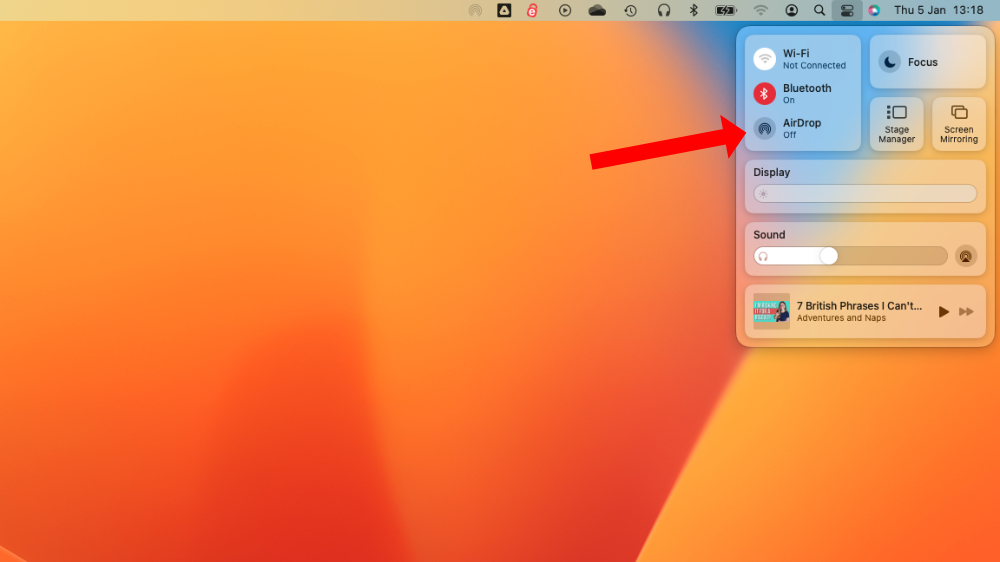
Foundry
From System Preferences:
The other option is to open System Preferences > Control Center (for older versions of macOS it can be found in Dock and Menu Bar) and you’ll see the list of all the Modules available. Next to each of these is a drop-down menu that allows you to select where and when the option will appear. The settings are ‘Show in Menu Bar,’ ‘Don’t show in Menu Bar,’ and for some there is ‘Show when active.’

Foundry
Use these to configure the icons you want in your Menu Bar, then take the steps above to arrange them to your preferred order.
If you scroll down further, you’ll see other modules that you can add to both Control Center and the Menu Bar. To do so, simply toggle on the options for each Module (eg: Show in Menu Bar).

Foundry
That’s it. Now you have control over your Menu Bar once more.
For more ways to master macOS, take a look at these guides:
- How to unsend and schedule email in Apple Mail
- How to set up and use Focus on your Mac
- How to use Reminders in macOS Ventura
https://www.macworld.com/index.rssMacworldMacworld is your best source for all things Apple. We give you the scoop on what’s new, what’s best and how to make the most out of the products you love.Technology124
Powered by WPeMatico