
How to set up two Mac monitors as a single screen
The ability to have two or more external monitors connected to your Mac in Extended Mode is a liberating screen experience, but leads to frustration when each still operates like an independent display.
Here we show you how to make the two Extended screens act like one with a few simple changes to your system settings.
Without this solution, you can’t have a browser page or application window shared across both screens. Instead, the window is hidden on one of the screens and only partially seen on the other.
It’s all to do with the Mac Spaces feature that lets you create multiple “desktops” and organize your apps and windows so they’re visible on separate desktops, instead of all on the same desktop.
The Mac’s Mission Control lets you create additional desktops, called Spaces, to organise the windows. When you work in a space, only the windows that are in that space are shown.
That’s what is stopping your two monitors acting like one single screen. Let’s fix that.
To make two monitors act as one single screen on a Mac, follow these steps:
- Open “System Settings” (under the Apple Menu in the top left of your main screen.
- Click on “Displays” in the left-hand option panel to check that the displays as set as “Extended”. If set a “Mirror”, each monitor shows the same screen.
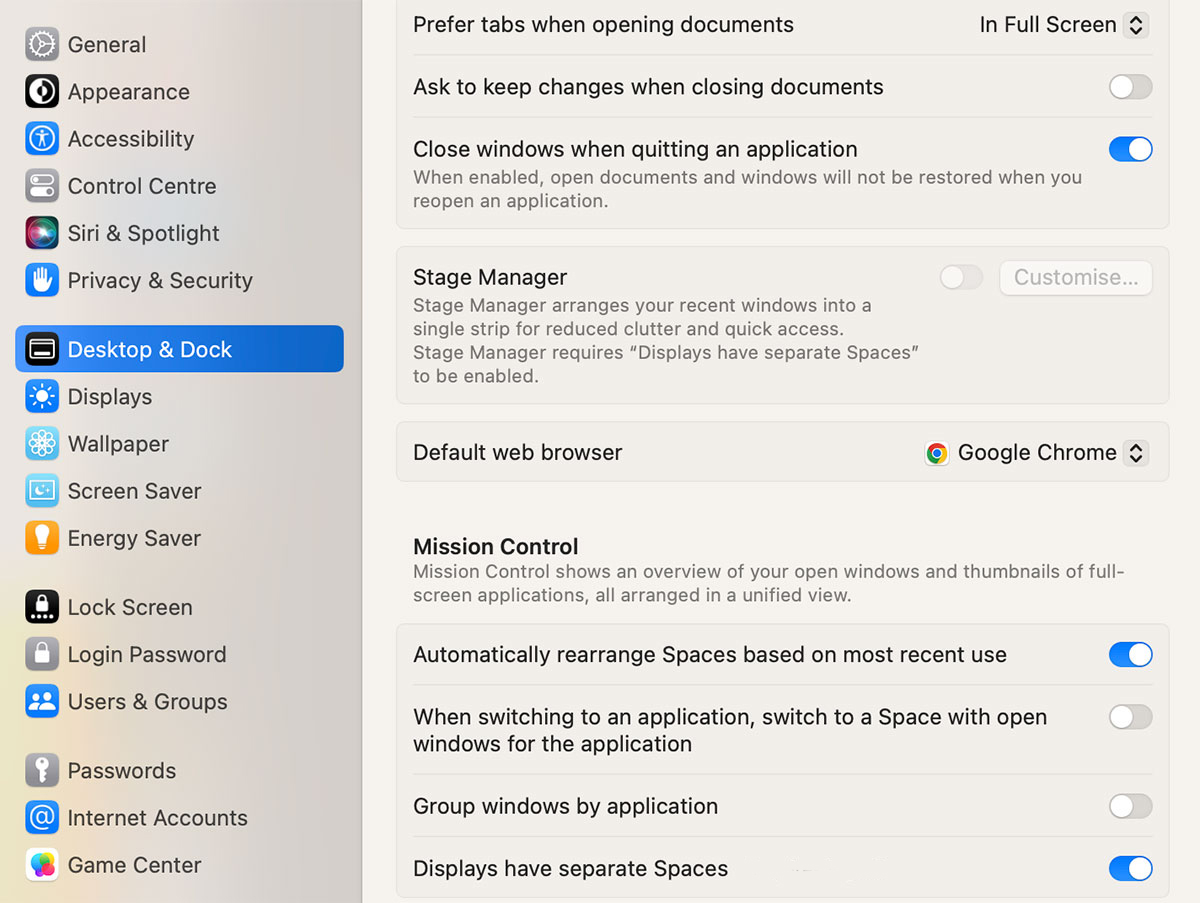
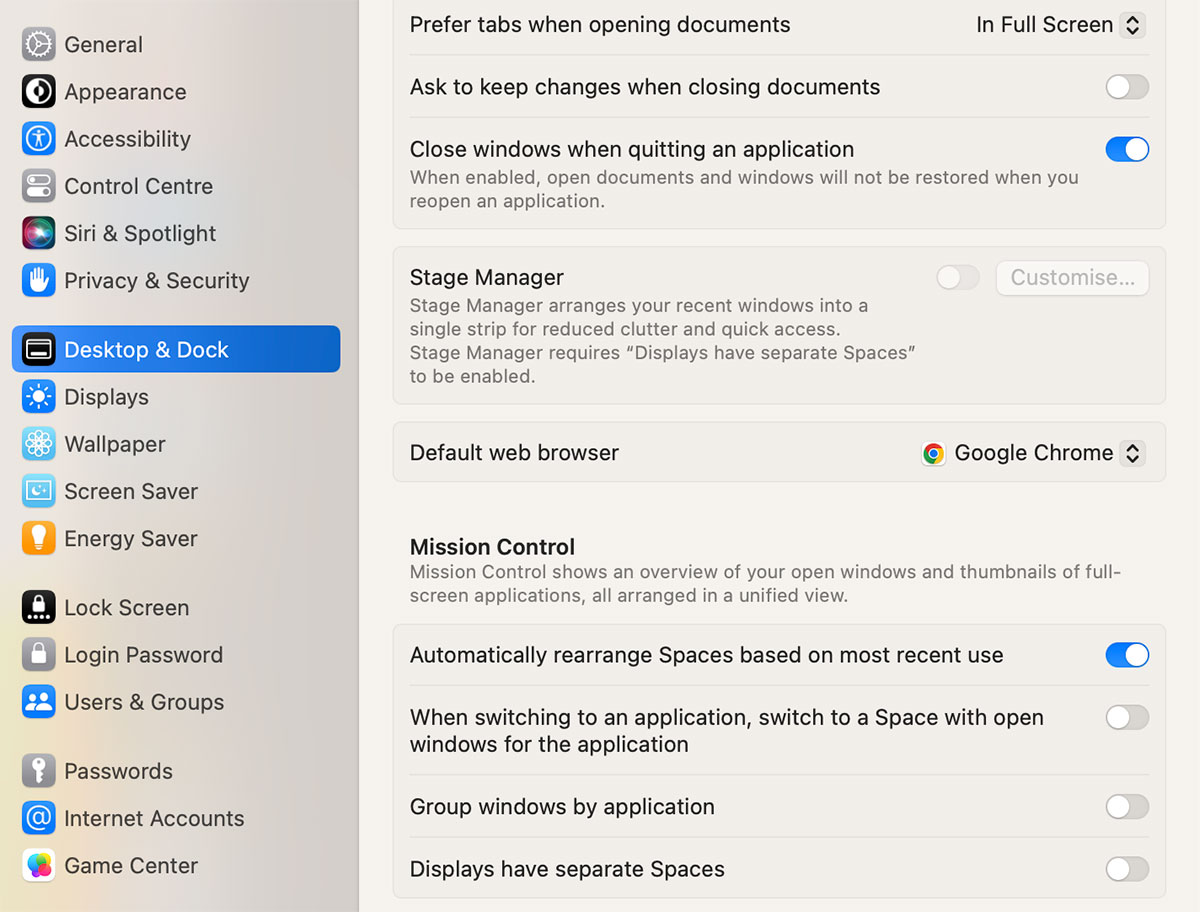
- Now click on “Desktop & Dock” in the left-hand option panel of System Settings.
- Scroll down to “Mission Control”.
- Where it says “Displays have separate Spaces” unclick the blue slider so that it goes gray.
- You then need to restart your Mac. After restart, the two screens should work as one.
Foundry
Foundry
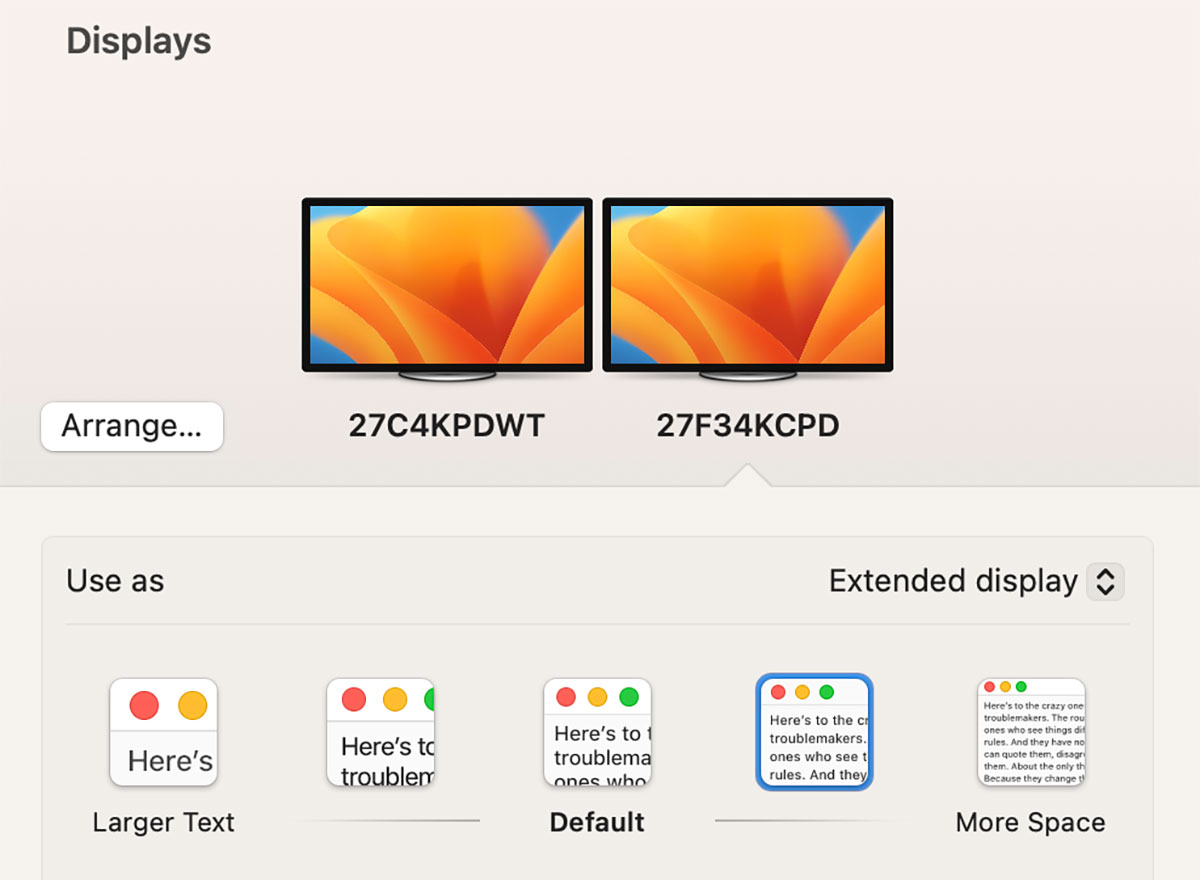
You maybe also need to check that the two displays are set to compatible resolutions so that each displays the other part of what is spread across the screens at the same size.
Open System Settings and choose Displays.
Foundry
Play around with each screen’s size options from “Larger Text” to “More Space” until both monitors show the same window sizes.
Plain non-Pro/Max M1 and M2 Macs are limited to connecting just a single monitor but you can connect two displays to an M1 or M2 Mac with some software and hardware solutions.
Find out what we think is the best Mac monitor.
Powered by WPeMatico
https://www.macworld.com/index.rssMacworldMacworld is your best source for all things Apple. We give you the scoop on what’s new, what’s best and how to make the most out of the products you love.Technology124