
How to turn on Dark Mode in Windows 11
Like Windows 10, Windows 11 comes with two primary options for its menus, settings, and other primary interface elements: dark or light. While it’s easy to change from one to the other, it isn’t immediately apparent how to access that option. Here’s how you do it.
Switch from Light to Dark or Dark to Light
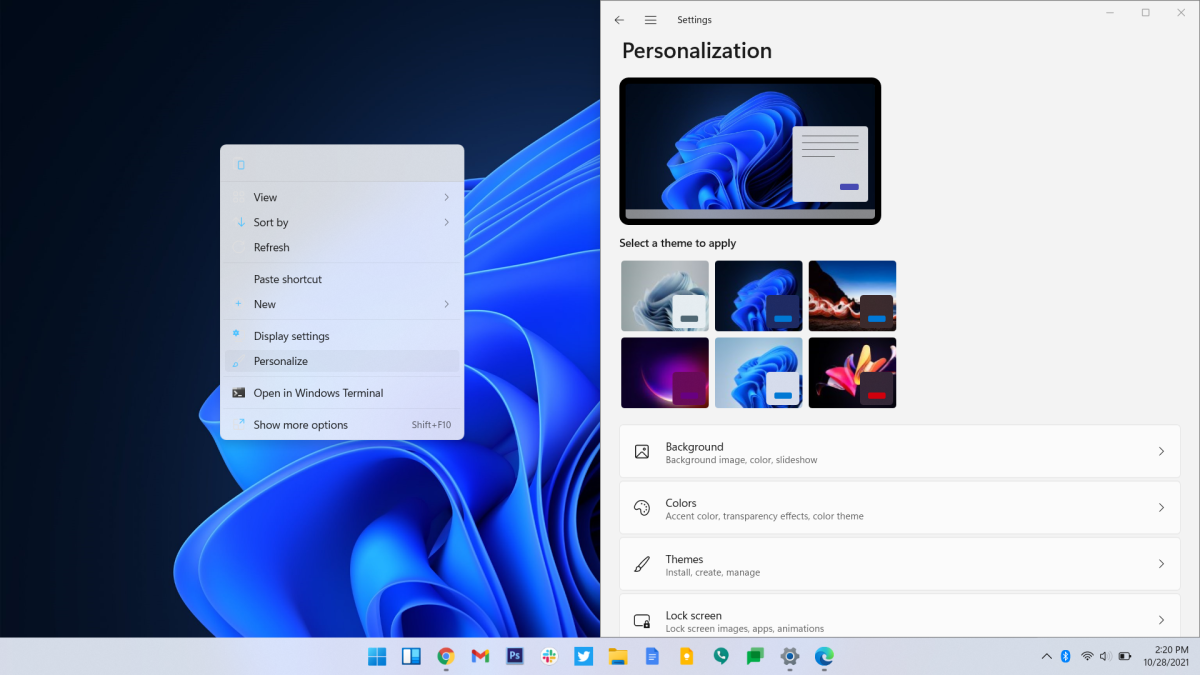
From the Windows 11 desktop, right-click on any open space on your wallpaper, then click “Personalization.”
Michael Crider/IDG
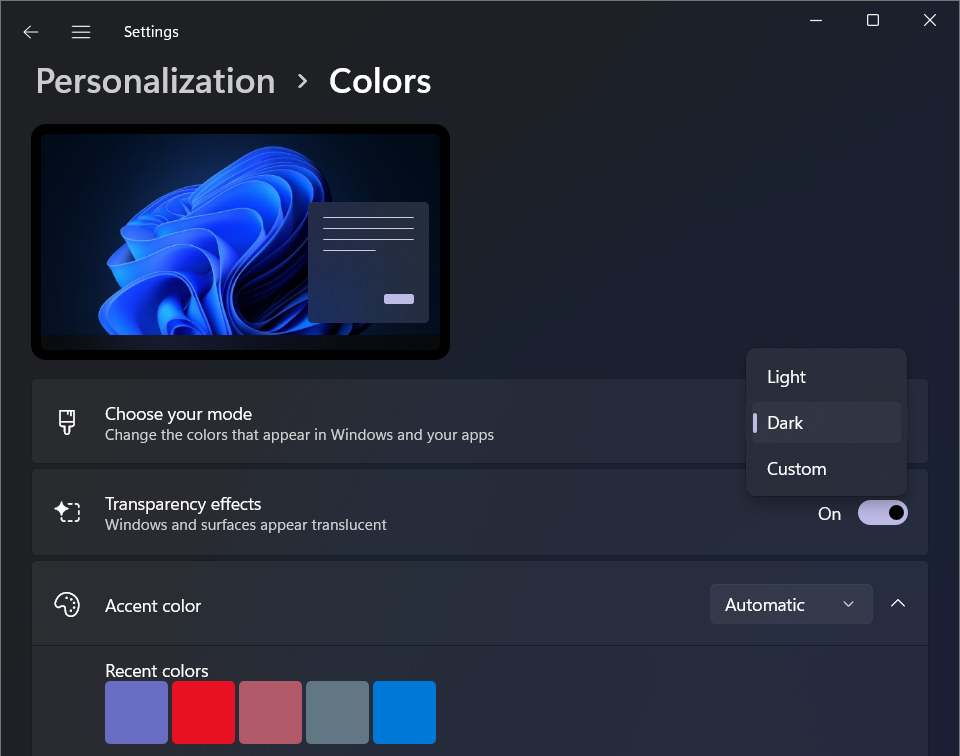
Scroll down a bit and click “Colors.” The first option on this screen Is “Choose your mode.” This is what you’re looking for, more or less. You’ve got three options:
- Light — most backgrounds and visual elements will be white or light grey
- Dark — most backgrounds and visual elements will be shades of dark grey
- Custom — choose between Light and Dark modes for both Windows settings menus and apps
Michael Crider/IDG
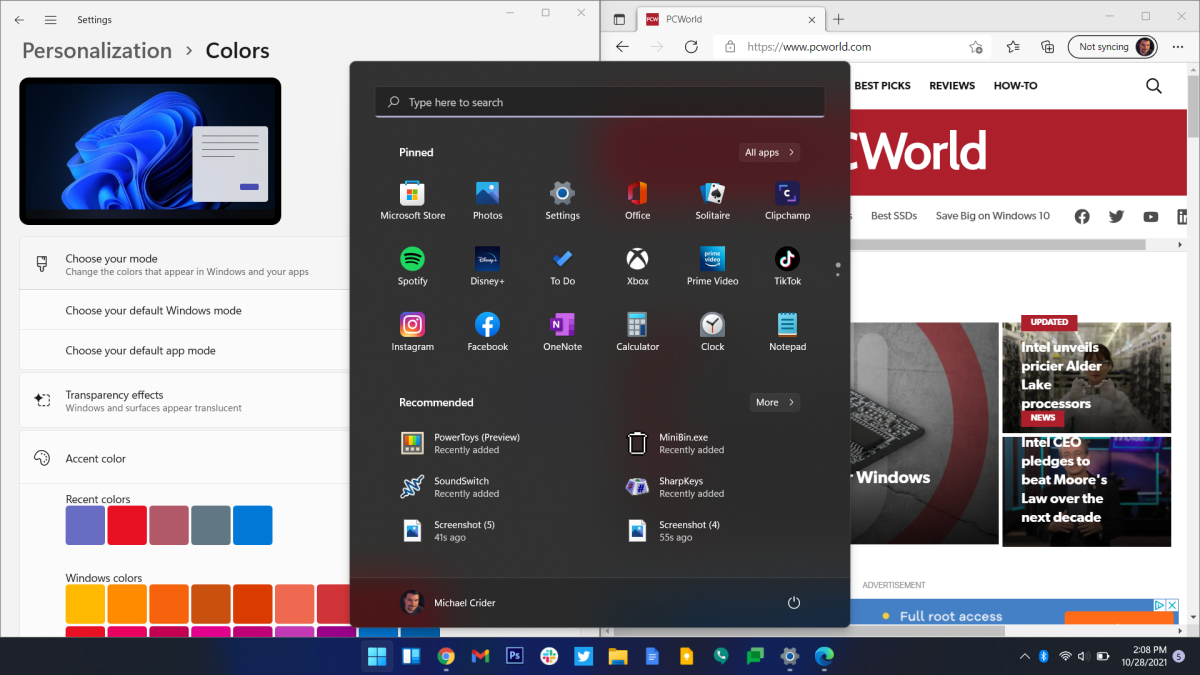
Most people will probably prefer either light mode or dark mode for both, but you can mix and match using the Custom setting. For example, here’s a Custom setup with the Windows taskbar and Start menu set to dark and apps set to light:
Michael Crider/IDG
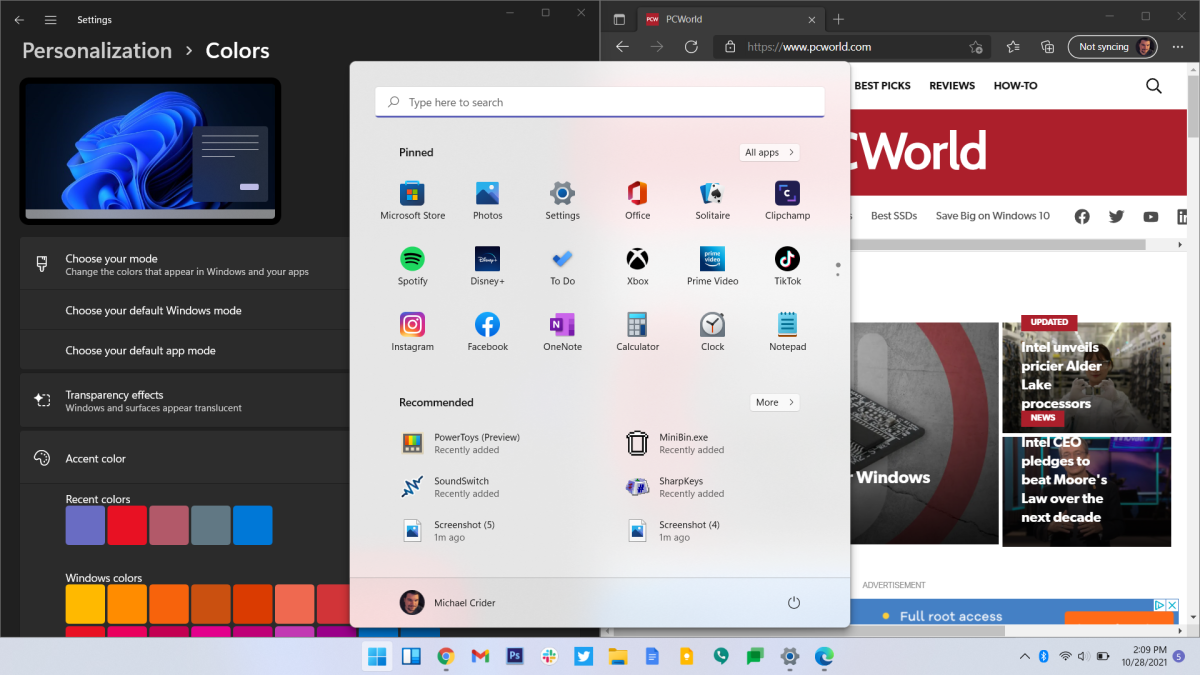
And here’s the opposite configuration:
Michael Crider/IDG
Note that not every app supports automatically switching between light and dark modes with Windows.
Color choices
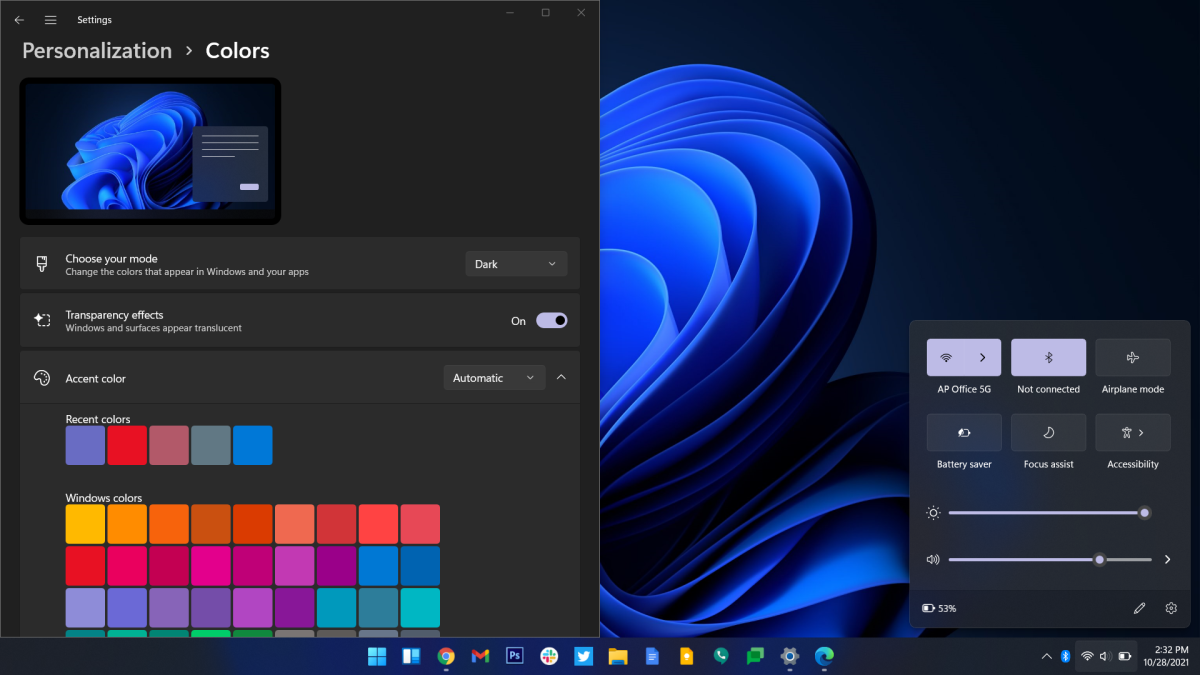
Scrolling down a little further, you can customize your PC’s theme even more by choosing an accent color. This is the color (and related colors) that will appear on Windows elements that require contrast to be easily visible, like the notification icon in the bottom-right corner of the taskbar, or the selected buttons on the Action Bar. By default Windows 11 will choose an accent color based on the colors of your desktop wallpaper. This tends to look pretty good and contributes to a consistent overall theme.
Michael Crider/IDG
But if you’re not thrilled with the automatic choice, you can select “Manual” from the drop-down bar on the right. If even the tiles on the main view aren’t enough, you can scroll down to Custom colors and click “View colors” to choose from an RGB palette.
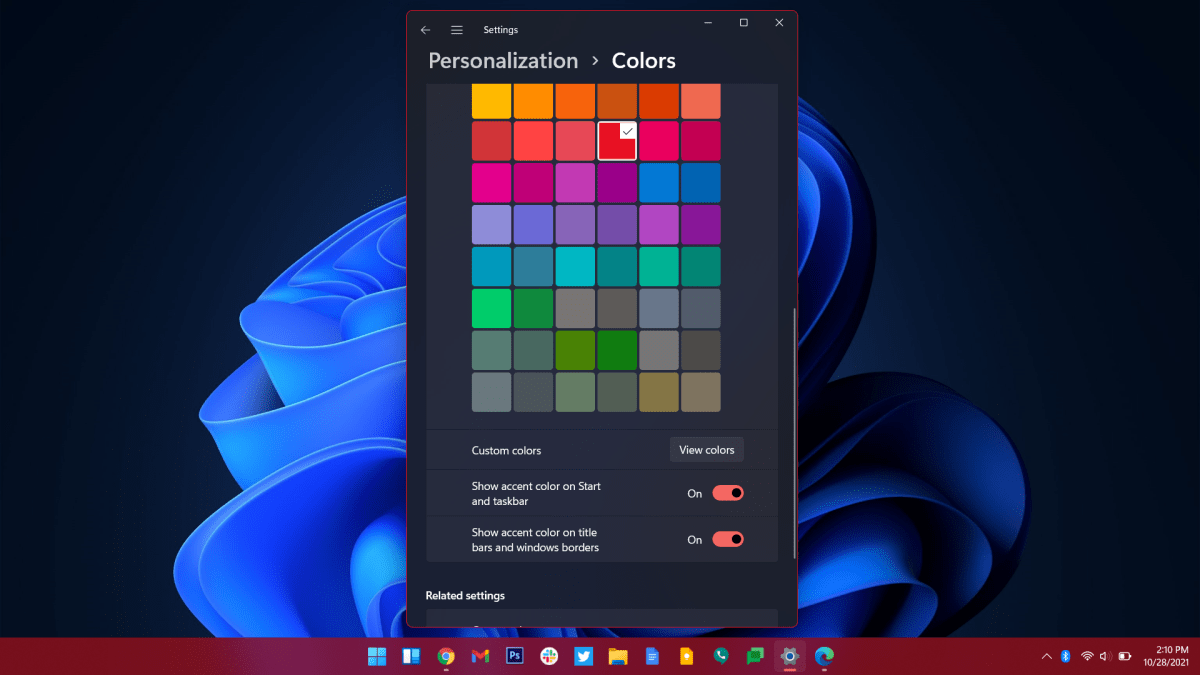
The last options are to apply your accent color to your Start menu and taskbar, and to show an accent color on title bars and window borders. This lessens some of the transparency of Windows 11, and makes it look more like some of the older versions of the operating system. It looks like this:
Michael Crider/IDG
All of these options are cosmetic — they won’t affect how your computer performs at all — and can be adjusted or undone at any time.
https://www.pcworld.com/index.rssPcworld.comPCWorld helps you navigate the PC ecosystem to find the products you want and the advice you need to get the job done.https://www.pcworld.com/wp-content/uploads/2021/09/cropped-cropped-PCWorld-Site-Icon.png?w=32Technology124Michael Crider
Powered by WPeMatico