
How to turn on Low Power Mode in macOS Monterey
If you have an iPhone, you’re probably familiar with Low Power Mode, an option you can set so the device preserves battery life. Now the Mac has a low power mode too, and it does a similar thing: Reduces energy consumption by automatically turning down the screen brightness and system clock speed to save battery life and make your Mac run more quietly.
Editor’s note: Updated 10/6/21 with information about Cooldown, a menu bar app that allows quick access to the Low Power Mode setting.
Low power mode is available on the MacBook (Early 2016 and later) and MacBook Pro (Early 2016 and later) running macOS Monterey. Here’s how to turn it on:
- Launch System Preferences.
- Select the Battery pane.
- In the left column, click Battery. Check the box for Low power mode if you want to use it while you’re running off of the MacBook’s battery.
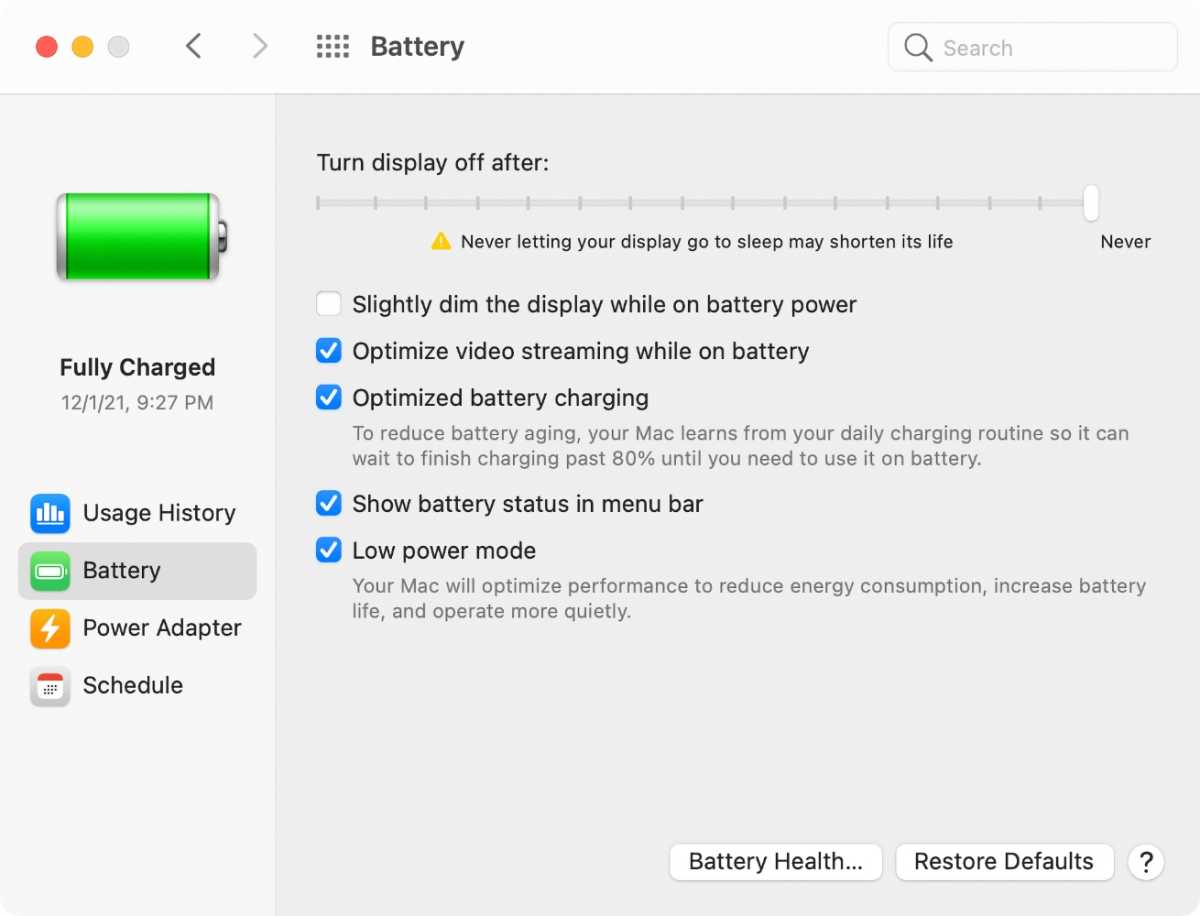
Low Power Mode setting while on battery power.
Apple
You can also turn on low power mode when plugged in. In the left column, click Power Adapter. Check the box for Low power mode if you want to use it while your MacBook is connected to the power adapter. Your Mac will presumably run cooler and quieter when enabled.

Low Power Mode setting while connected to the power adapter.
Apple
How to quickly turn on or off Low Power Mode
Monterey doesn’t have a quick way to turn Low Power Mode on or off. But developer Jordi Bruin made a little menu bar utility that you can use to do this. It’s called Cooldown and it’s free (though you do have the option to toss the developer a few bucks).

Jordi Bruin

https://www.macworld.com/index.rssMacworld.comMacworld is your best source for all things Apple. We give you the scoop on what’s new, what’s best and how to make the most out of the products you love.https://www.macworld.com/wp-content/uploads/2021/03/cropped-macworld-favicon.png?w=32Technology124Roman Loyola
Powered by WPeMatico