
Make the macOS Dock tiny by using Terminal
You probably already know that you can shrink (or enlarge) the Dock by clicking and dragging the bar that separates the applications from folder stacks. You probably also know that you can adjust the Dock size in System Preferences, by opening the Dock & Menu Bar pane and dragging the Size slider whichever way you want.
But these tools can only take you so far. They’ll make the Dock small, but not really small. To do that, you need to open the Terminal (Applications/Utilities) and type:
defaults write com.apple.dock tilesize -integer 8
Press Return, then type:
killall Dock
The number at the end of the command can range from 1 (too small to be useful) up to 16 (the smallest size you can achieve with those other tools); 8 is tiny but still visible.
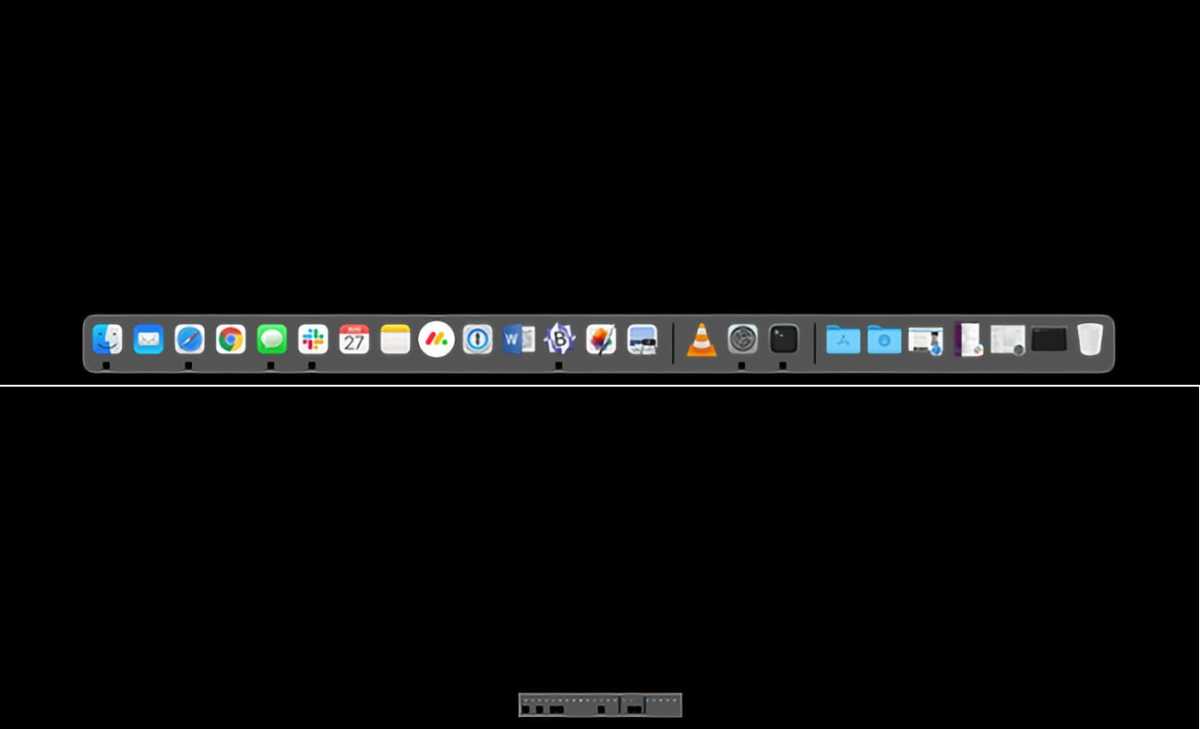
Top: The smallest the Dock can be using the Dock & Menu Bar system preference.
Bottom: How the Dock appears after resizing to a 1 setting in the Terminal.
IDG
To make such a small Dock useful, you’ll probably want to turn on Dock magnification: In the Dock & Menu Bar system preferences pane, check the box by Magnification and adjust the slider.
If you want to get back to normal, the easiest way to revert this setting is to open that preferences pane again and use the Size slider. As soon as you click and drag it, you’ll be returned to the normal size range for the Dock.
https://www.macworld.com/index.rssMacworld.comMacworld is your best source for all things Apple. We give you the scoop on what’s new, what’s best and how to make the most out of the products you love.https://www.macworld.com/wp-content/uploads/2021/03/cropped-macworld-favicon.png?w=32Technology124Macworld Staff
Powered by WPeMatico